My AI assisted coding history
It seems ages have passed by, but it was only 2020 when ChatGPT-3 was released. We developers and technology enthusiasts had been aware of it, but in November 2022 ChatGPT-3.5 was released to the mass market and rocked the world. This is the timeline:
| Year | Model | Impact |
|---|---|---|
| 2018 | GPT-1 | Research prototype. |
| 2019 | GPT-2 | Significant attention in the AI community, but not widely used by the public. |
| 2020 | GPT-3 | Impressive capabilities, mostly accessed through APIs and developer tools. |
| Nov 2022 | ChatGPT (GPT-3.5) | First version to become a global phenomenon. |
| Mar 2023 | GPT-4 | Major quality improvement, building on ChatGPT’s already massive user base. |
At first I used it like many other developers, I assume. Just copy and paste from the browser or ChatGPT app to the IDE. This was fine for scripts or very localized problems, and that small assistance to my daily coding was enough for a couple of years, until I subscribed to GitHub Copilot in August 2025.
As I write, I’m checking the release dates of the main AI coding assistants. I’m surprised to learn GitHub Copilot was among the first in October 2021, earlier than Cursor and Windsurf, both released in 2023. But I didn’t know OpenAI themselves were behind GitHub Copilot, so now things make sense.
But back to my use case. Since I subscribed to Copilot, I’ve been gradually increasing its usage. For the first 7 months the $10 tier (Copilot Pro) was enough for me; I rarely ran out of tokens. For the most part, I kept doing manual coding and usually selected the free models for basic syntax assistance, switching to paid models only when required. But in February of this year, I switched to Copilot Pro+ because I had stopped using free models, and despite still coding manually, the AI was becoming so good that I kept coming back to the agent more and more.
It has now reached an ability level such that, for developing a prototype from scratch, manual coding is a waste of time. However, for production environments with large and complex codebases, things get trickier. On one hand, assuming a localized problem in a single source code file, the agents are also wiser but, more importantly, make far fewer errors than a lowly human developer. On the other hand, the thing is unable to keep all the context of such big codebases, and navigating many files takes a long time and consumes many tokens.
The obvious approach is using manual references to tell the agent which files to consider:
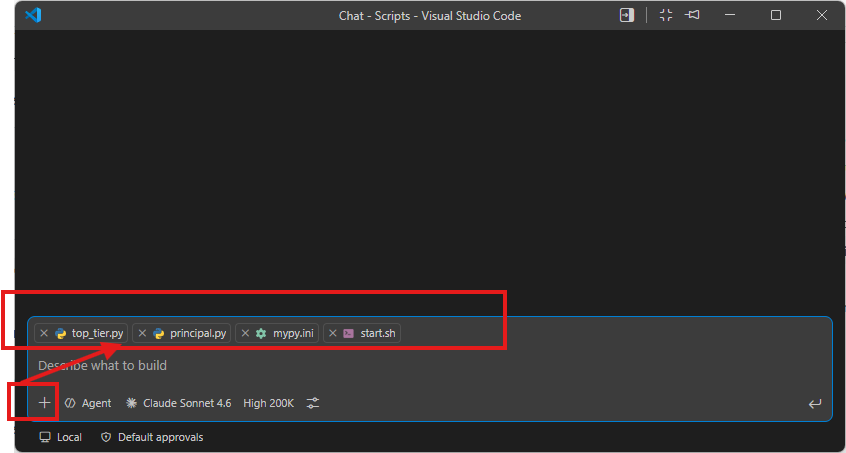
But it would be great if the agent knew how to navigate the codebase without me constantly assisting it. Furthermore, after recent updates in Copilot pricing and the stock exchange frenzy, token cost is increasing by the day.
My next step in AI coding is to sort these problems out.
Next steps in AI coding
Before I start, a prerequisite. For my private project repositories, the remote is a Linux box I have at home. I keep some projects hosted on GitHub, but many aren’t, so the idea is, despite using Copilot, to avoid GitHub-only features to prevent lock-in. So I try to avoid features such as those shown on this page: Copilot on GitHub. Ideally, all AI enhancements should be as portable as possible. At my day job, my employer has provided the developers with ChatGPT Codex accounts, so I can compare both systems to see whether things work in both.
Persistent codebase instructions
The information shown in GitHub Copilot in your IDE covers well-known IDEs: VS Code, Visual Studio, JetBrains, Eclipse, and Xcode. I think any IDE would work, so that’s a good starting point.
We can define a .github/copilot-instructions.md file to write repository-wide instructions. This is a Copilot-only feature. We can also create AGENTS.md files to define instructions in a given folder or at the directory root. This latter feature is an open documented standard adopted by all major players, so I’m going with this one.
According to the docs, in Visual Studio Code we can check that our instructions have been considered by looking at the references the agent shows after responding.
The instructions in the file(s) are available for use by Copilot as soon as you save the file(s). Instructions are automatically added to requests that you submit to Copilot.
Custom instructions are not visible in the Chat view or inline chat, but you can verify that they are being used by Copilot by looking at the References list of a response in the Chat view. If custom instructions were added to the prompt that was sent to the model, the .github/copilot-instructions.md file is listed as a reference. You can click the reference to open the file.
I have a trading bot repository that has never made any money. At least it’s going to be useful for testing AI features and, hopefully, for being my first agent-first personal project.
Let’s create my first top-level AGENTS.md file:
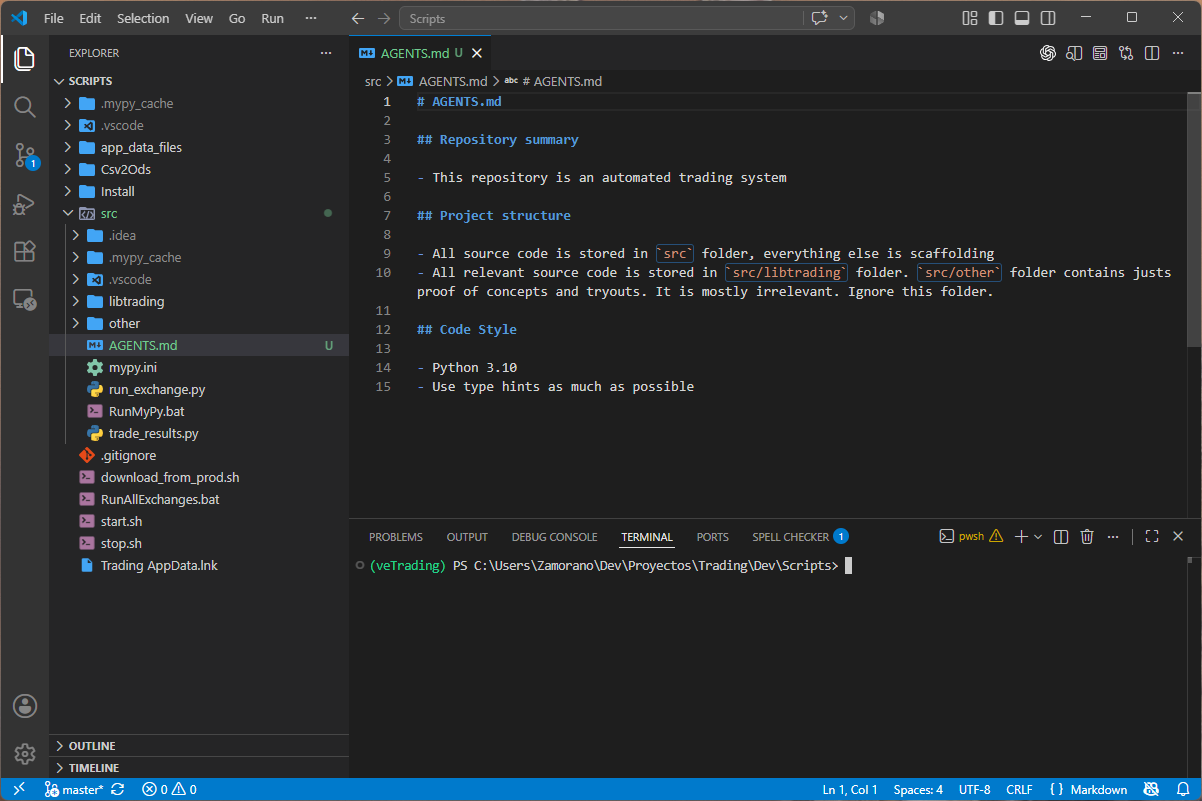
Pretty straightforward. I just state the purpose of the repository and give simple navigation hints.
Let’s ask the agent what this repo is about, and check whether it queried the file. Obviously, I won’t give a manual reference, to check whether it automatically grabs information from the file:
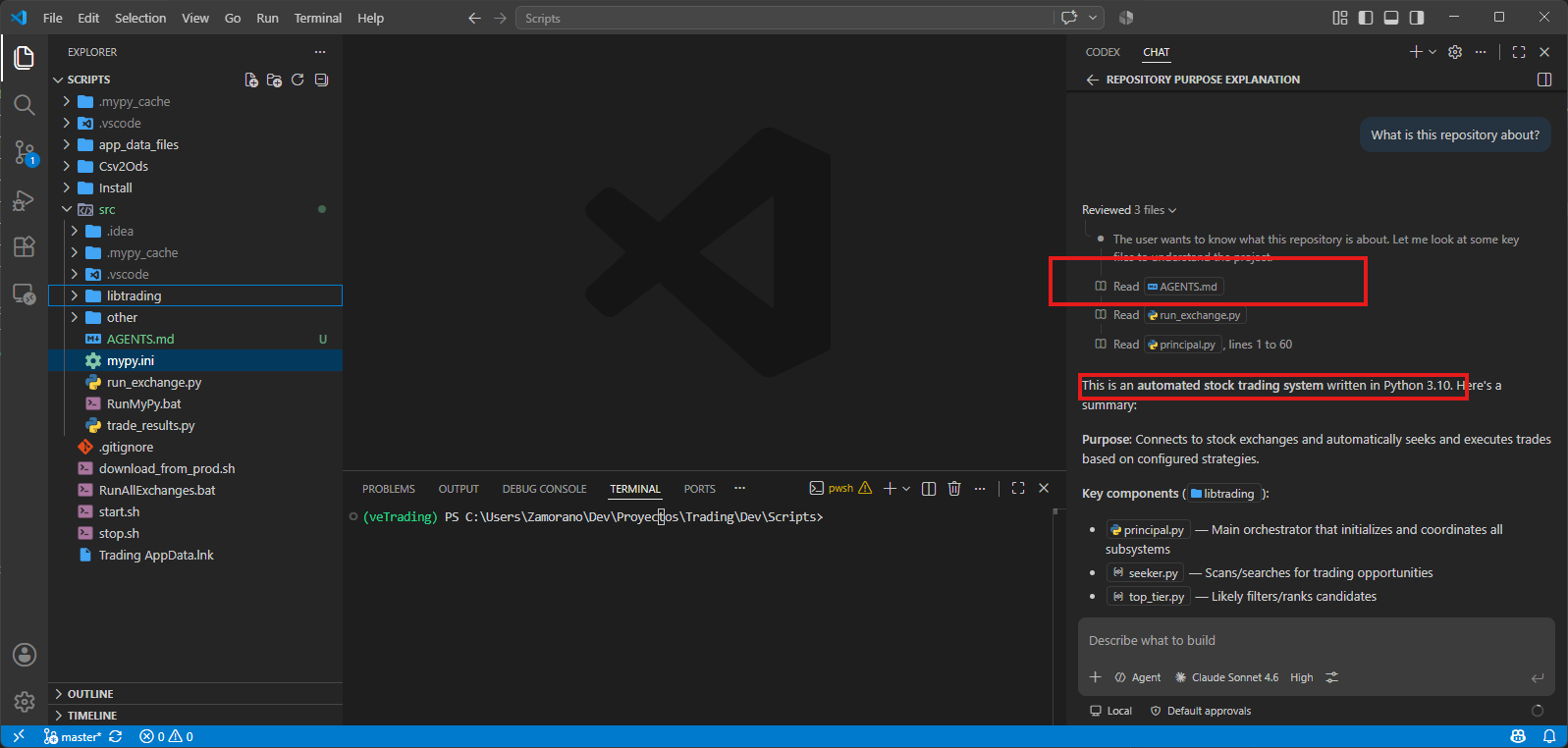
Fine, it got the memo. Now I can keep writing AGENTS.md files in each folder, giving granular information for each module.
Tools and Skills
AGENTS.md files create persistent context for AI agents; we’re just giving more information to our agent. Now, in order to increase its usefulness, we need dynamic features.
We’ve been using AI tools from the beginning without much thought. Indeed, for coding, an LLM alone is barely enough; simple tools like searching files, reading their contents, or browsing the web are required. Thankfully, most AI agents bring these out of the box. Here are the built-in VS Code chat tools:
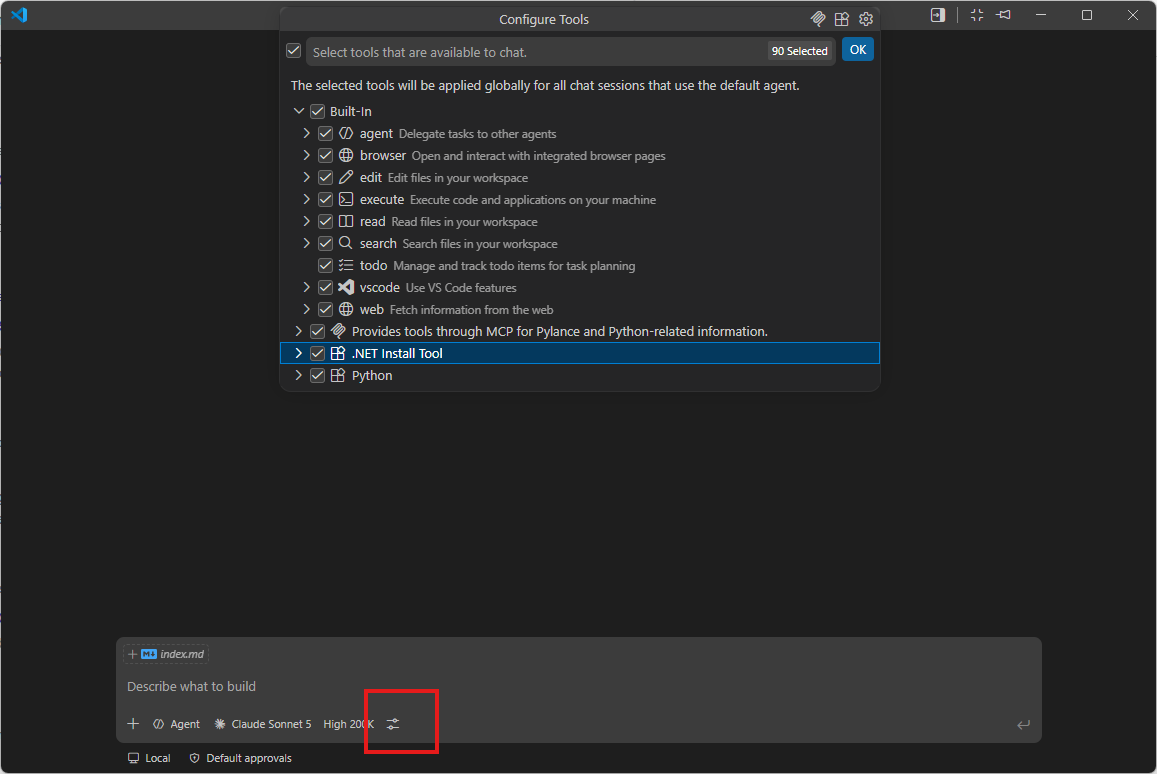
Now, tools, as their name suggests, are straightforward abilities: actions our agent can invoke. But to increase its knowledge, we use a different abstraction called skills. Plenty of web articles, like this one, explain the difference.
It’s also relevant that agent skills are an open standard.
Codebase navigation
Graphify is the code navigation skill introduced at work, so this is the one I’m going to evaluate. The docs state:
No account, no API keys, nothing leaves your machine
so it nicely fits my lock-in requirements and also supports all relevant AI coding assistants.
This is a Python tool. I didn’t want to pollute the virtualenv my trading bot uses, so I had to create a separate one. Use your favorite Python venv/package tool; I’m still using venv/pip:
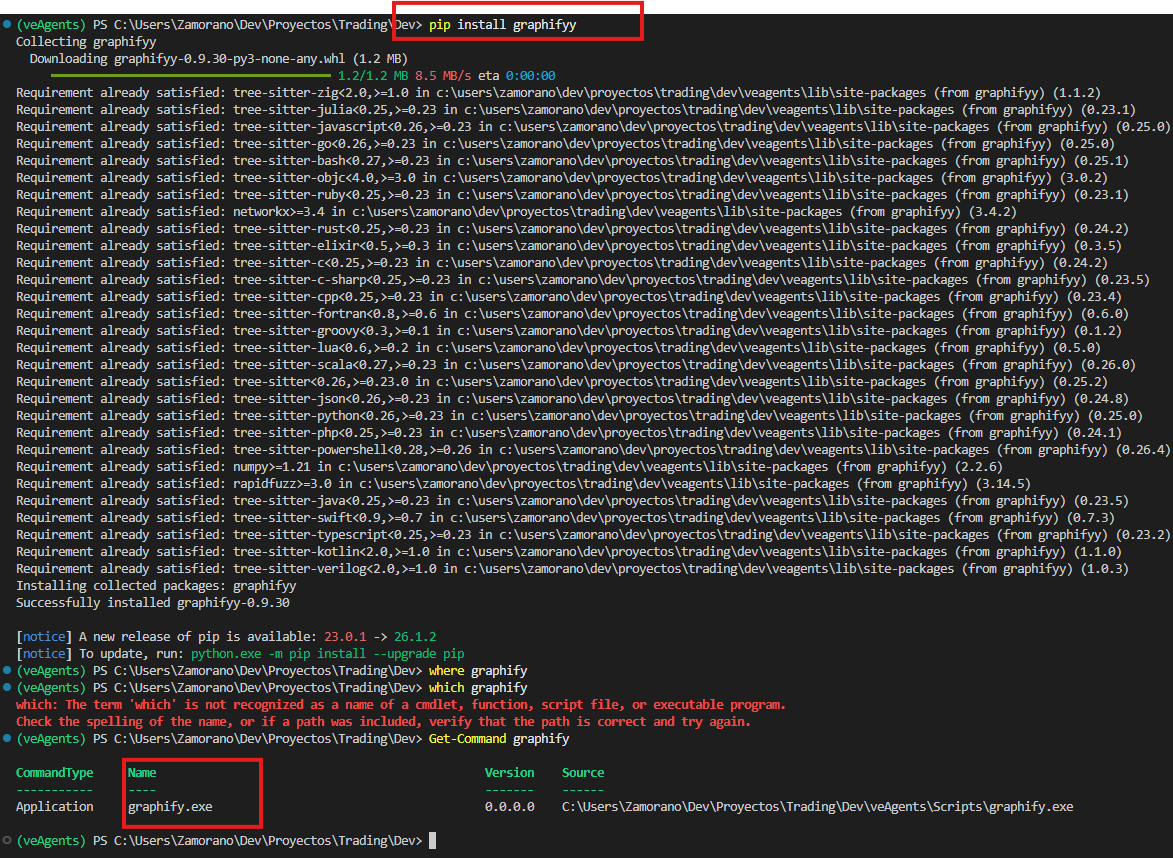
Now we have the command-line tool available. The next step is to execute the tool to install the skill and make it available for the assistant:
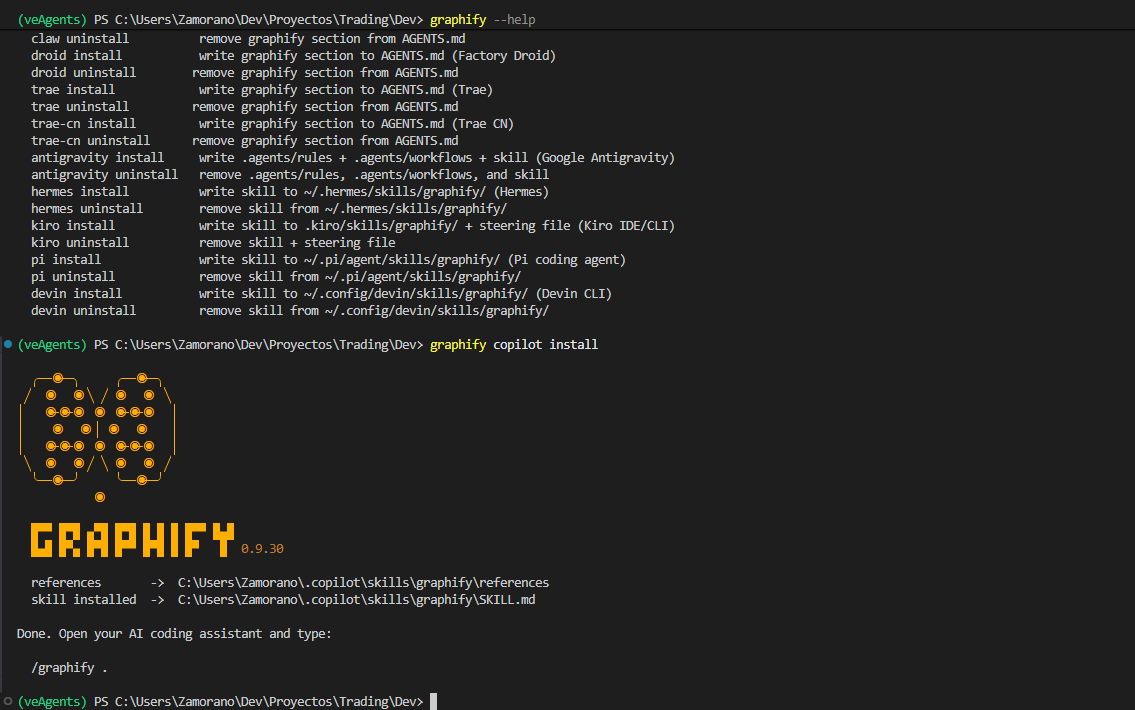
Now that the skill is installed, I should be able to talk about it with my agent. I first had to enable the right virtualenv in the hidden terminal the agent uses:
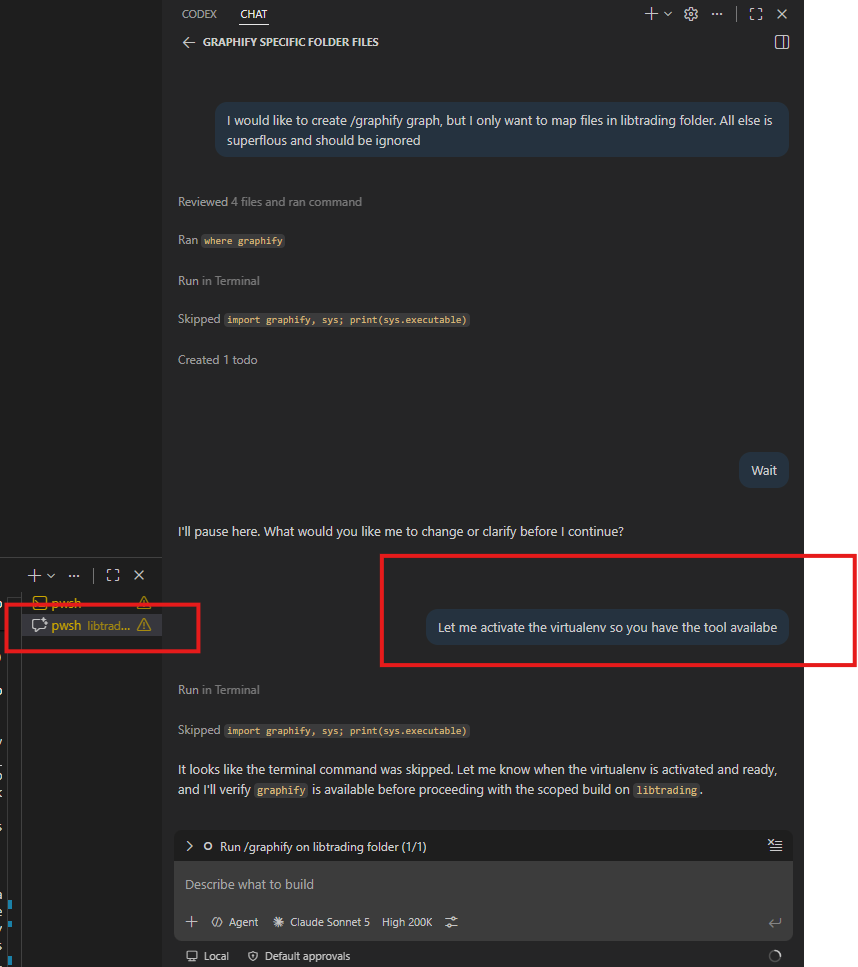
but after that, I asked it to build the code graph scoped to the folders I wanted, and after a while, it did so nicely:
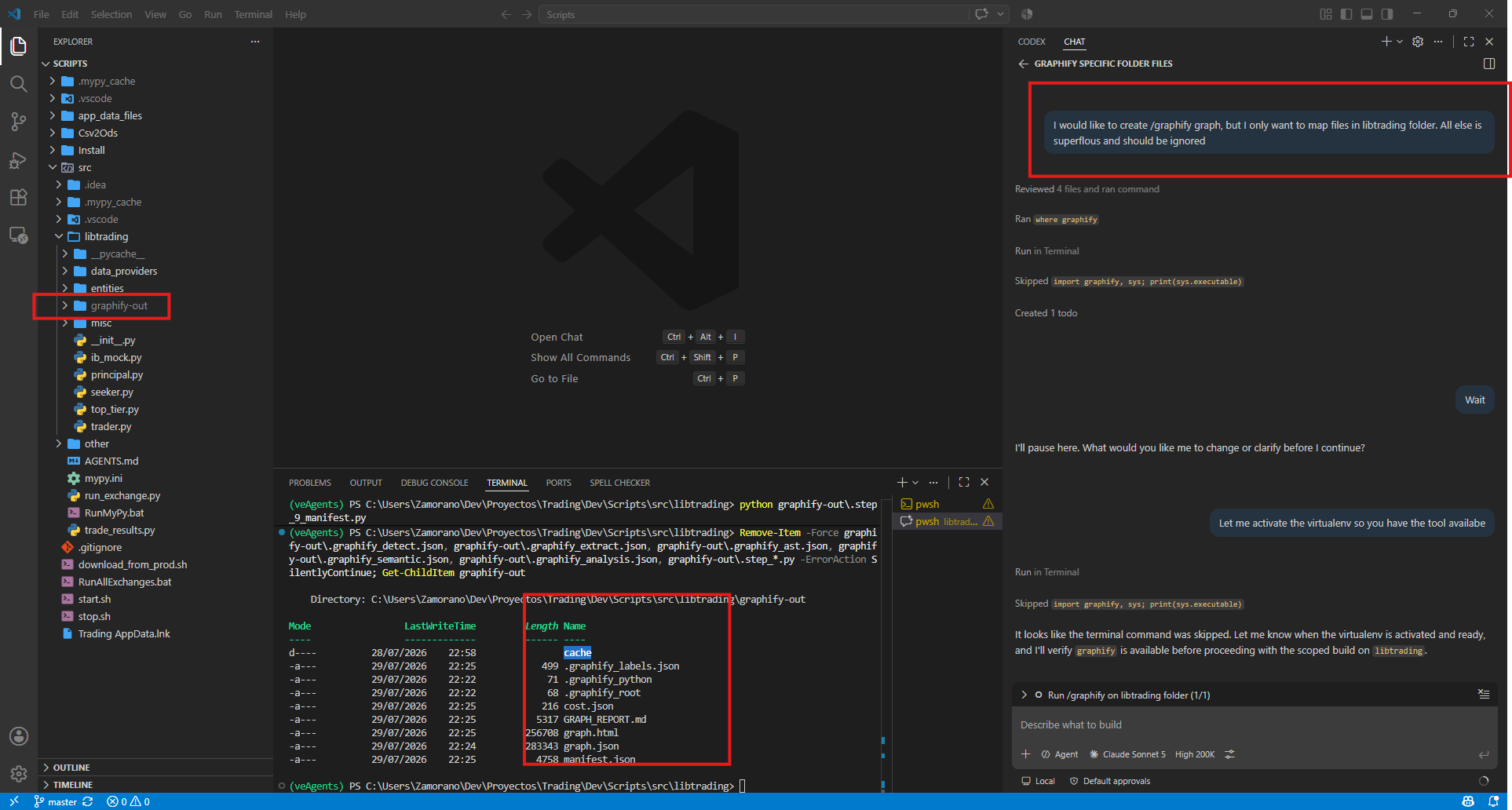
The tool provides a nice HTML representation of the graph. It might not be that useful, but at least I can use it to check that the information Graphify mapped is correct:

It looks good to me. Dangling nodes are __init__.py files. Now we can use the skill to ask questions:
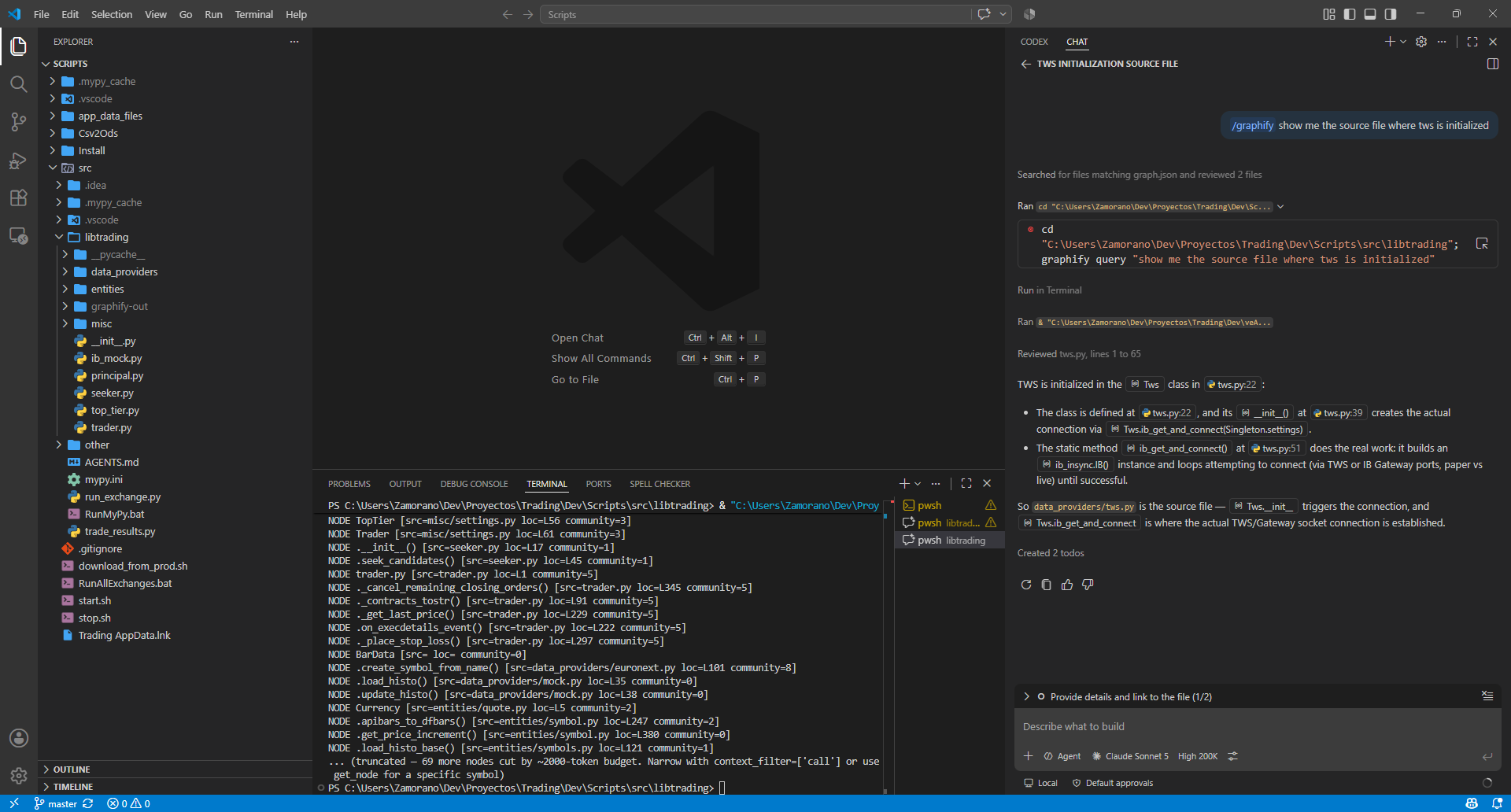
It’ll take a while to assess how useful the skill is. On a bigger codebase (at my day job) I’ll get a more informed opinion.