Since its first edition in 2018, I have been attending Cooltural Fest, a music festival that takes place yearly in my hometown of Almería.

I use the months before the festival to learn about new bands. The organization keeps an official Spotify Playlist that I don’t find very interesting since they, rightfully, emphasize the bigger bands and their most popular songs. Every year I copy all entries to my own list, trim most of the headliners’ content, and keep adding entries from the smaller artists.
But what I like is hearing music while coding, not messing with Spotify UI and playlists. I thought it would be nice to speak to an AI chatbot and tell it exactly how I want my playlist built. In this brave new world of AI, Spotify might have deployed their own agent or MCP server. Turns out they haven’t, but luckily some developer took the time to implement an MCP server for the streaming service.
Marcel Marais - Spotify MCP Server
At first glance, this looks fine. It has implemented the APIs I’ll likely need. I followed the setup instructions step by step, found no problem and five minutes later, I had my Spotify MCP ready to run.
To interact with the agent, the author provides instructions for Claude Desktop, Cursor and CLine Extension for VS Code. As of today, my AI setup is GitHub Copilot for work and ChatGPT Free for everything else. I don’t use Claude Desktop or Cursor. I do use Visual Studio Code, but its out-of-the-box GitHub Copilot chat is enough for me. My point is I didn’t want to try the CLine extension this time, so I tried to set up the MCP server without any more extension installs.
First, I ran the Add MCP Server command. When asked for the type of MCP server, I selected Command (stdio), typed node when asked for the command, and entered the server name. I chose to install the server only for the active workspace, so a new file was created in the active folder .vscode\mcp.json. The command line arguments must be filled manually as shown in the GitHub setup section. In the end, the mcp.json file should look like this
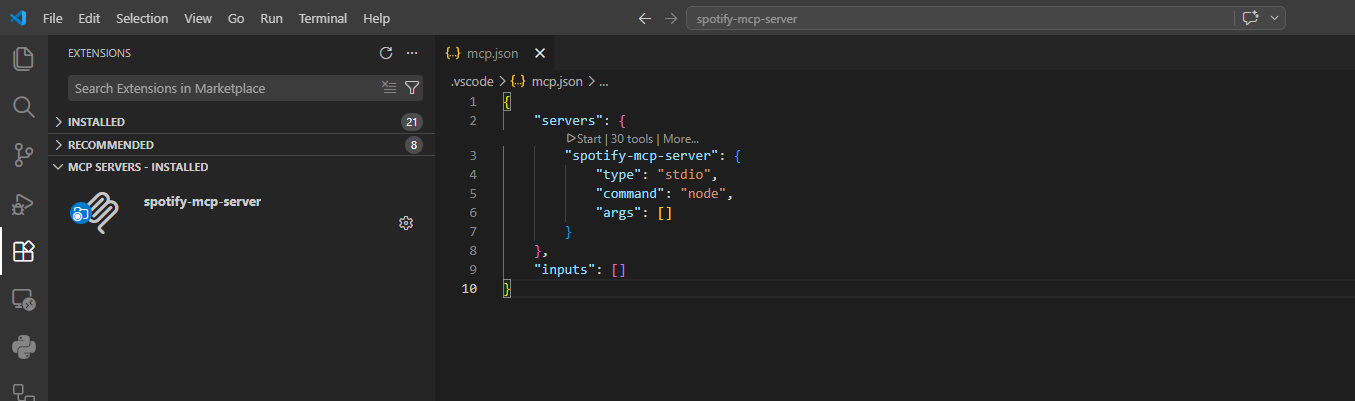
We’re almost set. Now click Start Server in the sidebar and Voila! We have our agent ready to answer Spotify questions.
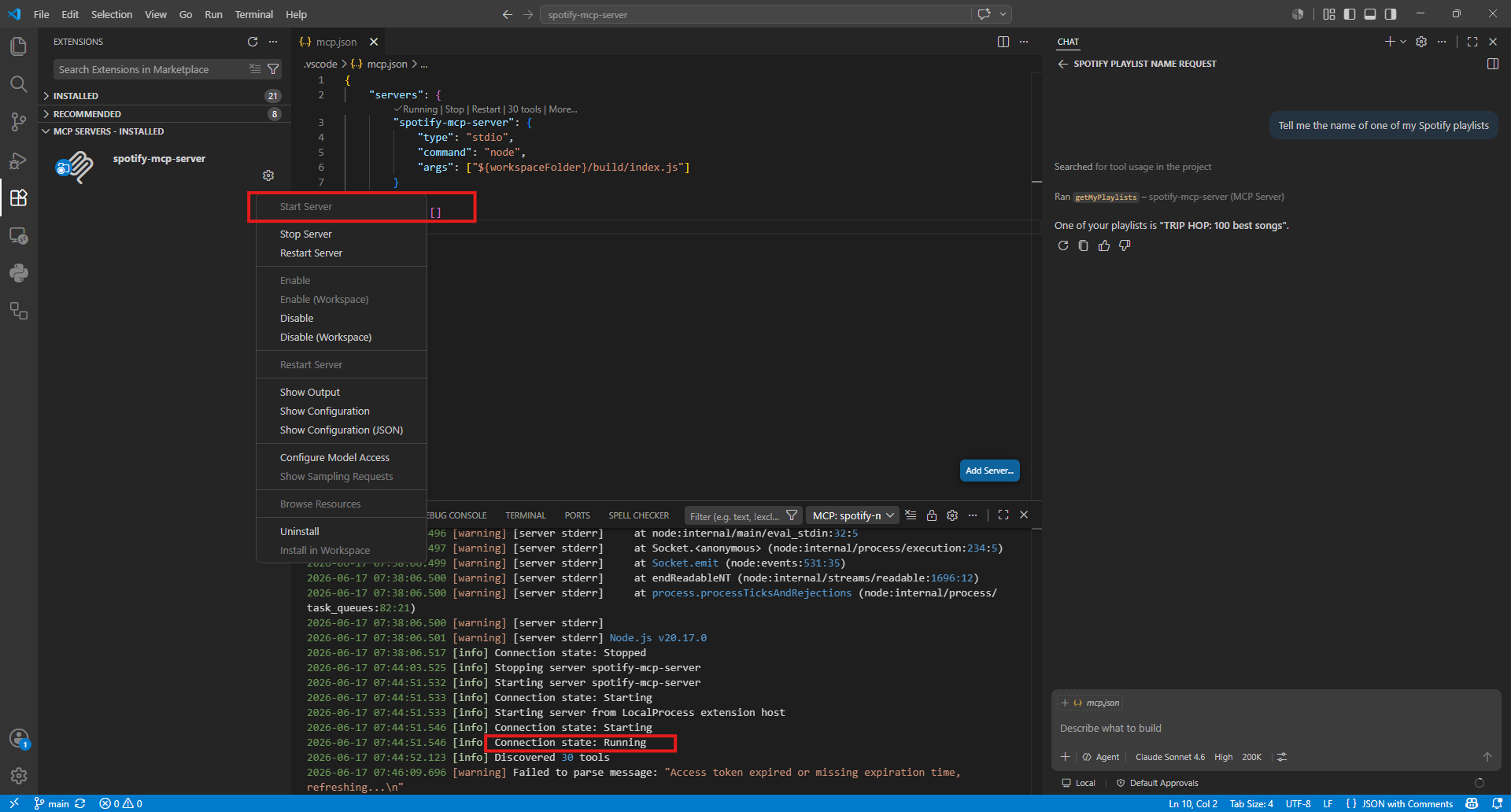
In the next post, I’ll explore how clever the chatbot is and whether it’s enough to build my perfect Cooltural 2026 playlist.